Flutter聊天室dart+flutter仿微信App界面flutter聊天实例
一、项目概述
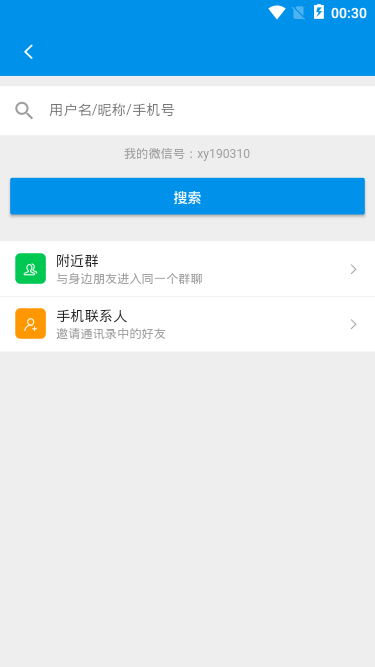
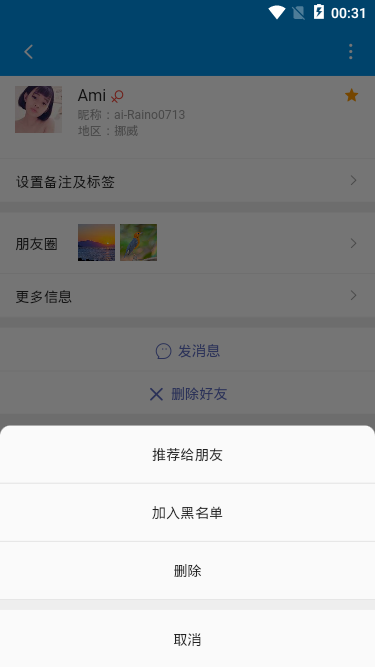
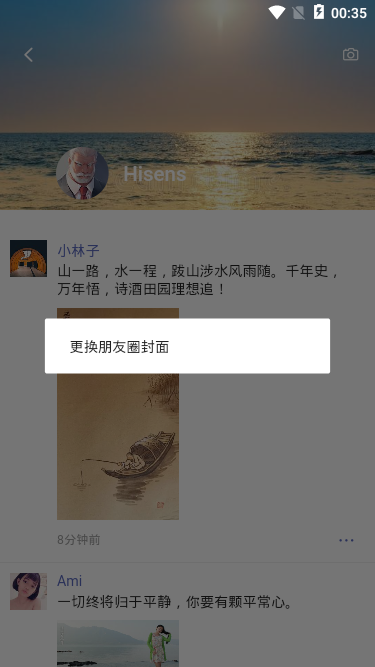
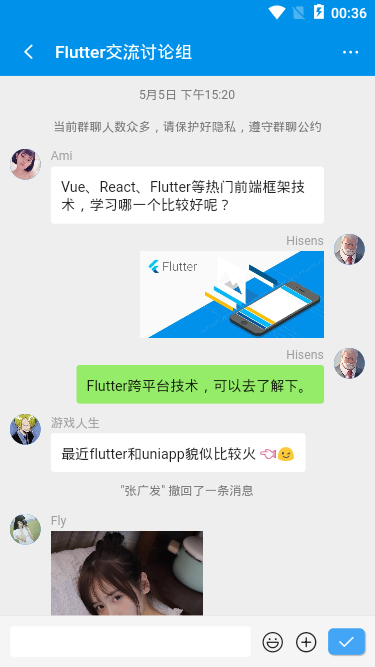
flutter-chatroom是采用基于flutter+dart+chewie+image_picker+photo_view等技术跨端开发仿微信app界面聊天室项目。实现了消息发送/动态gif表情、弹窗、图片预览、红包/朋友圈/小视频号等功能。
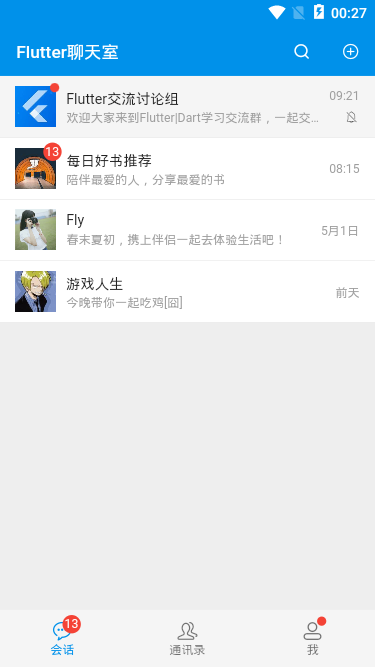
二、技术框架
- 编码/技术:Vscode + Flutter 1.12.13/Dart 2.7.0
- 视频组件:chewie: ^0.9.7
- 图片/拍照:image_picker: ^0.6.6+1
- 图片预览组件:photo_view: ^0.9.2
- 弹窗组件:SimpleDialog/showModalBottomSheet/AlertDialog/SnackBar(flutter封装自定义)
- 本地存储:shared_preferences: ^0.5.7+1
- 字体图标:阿里iconfont字体图标库







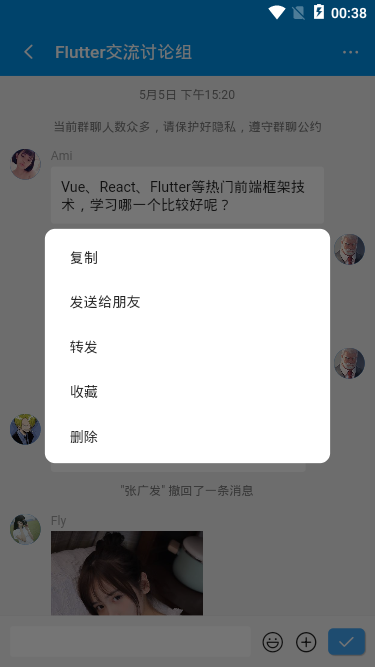

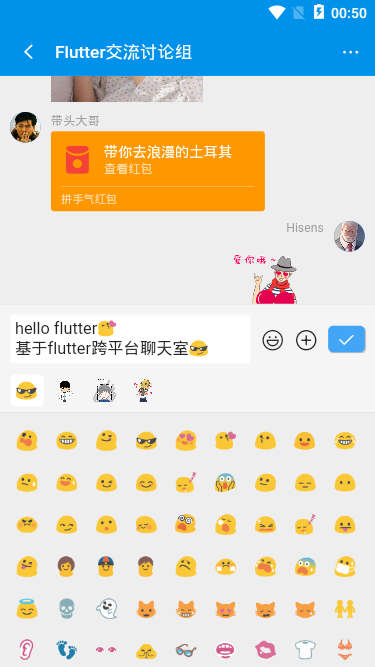
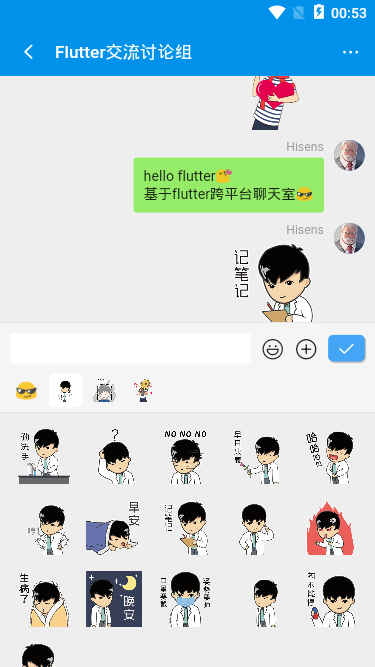
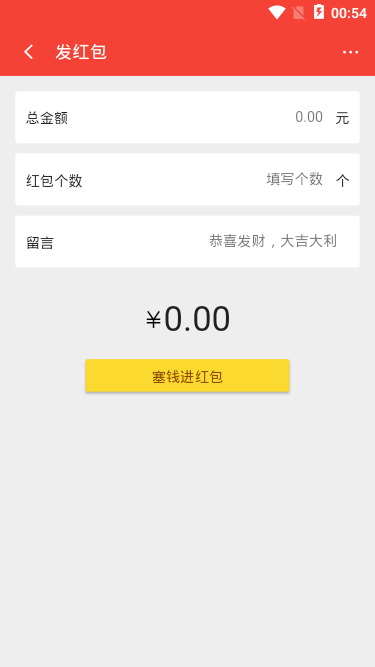

由于flutter基于dart语言,需要先安装Dart Sdk / Flutter Sdk,如何搭建开发环境,不作过多介绍,可以去官网查阅文档资料
https://flutter.cn/
https://flutterchina.club/
https://pub.flutter-io.cn/
https://www.dartcn.com/
如果使用vscode编辑器开发,可先安装Dart 、Flutter 、Flutter widget snippets等扩展插件

◆ flutter沉浸式状态栏/底部tabbar导航
在flutter中如何实现沉浸式透明状态栏(去掉状态栏黑色半透明背景),去掉右上角banner提示,可以去看这篇文章
https://www.cnblogs.com/xiaoyan2017/p/12784076.html
◆ flutter中使用字体图标 (阿里iconfont图标)
- 方法1: 使用系统图标组件: Icon(Icons.search)
- 方法2: 使用IconData方式: Icon(IconData(0xe60e, fontFamily: 'iconfont'), size: 24.0)
方法2 需要先下载阿里图标库字体文件,然后在pubspec.yaml中申明字体
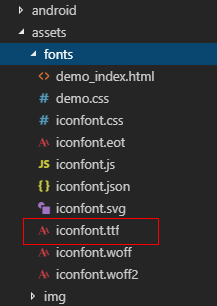
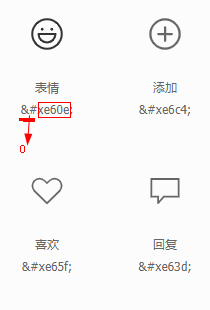

通过IconData调用简单封装: GStyle.iconfont(0xe635, color: Colors.red, size: 14.0)
class GStyle { // __ 自定义图标 static iconfont(int codePoint, {double size = 16.0, Color color}) { return Icon( IconData(codePoint, fontFamily: 'iconfont', matchTextDirection: true), size: size, color: color, ); }}
◆ flutter中红点/圆点提示


在flutter中没有上图这个红点提示组件,如是简单封装个badge组件
GStyle.badge(0, isdot: true)
GStyle.badge(13, color: Colors.green, height: 12.0, width: 12.0)
class GStyle { // 消息红点 static badge(int count, {Color color = Colors.red, bool isdot = false, double height = 18.0, double width = 18.0}) { final _num = count > 99 ? '···' : count; return Container( alignment: Alignment.center, height: !isdot ? height : height/2, width: !isdot ? width : width/2, decoration: BoxDecoration(color: color, borderRadius: BorderRadius.circular(100.0)), child: !isdot ? Text('$_num', style: TextStyle(color: Colors.white, fontSize: 12.0)) : null ); }}
◆ flutter主入口页面main.dart
/** * @tpl Flutter入口页面 | Q:282310962 */import 'package:flutter/material.dart';// 引入公共样式import 'styles/common.dart';// 引入底部Tabbar页面导航import 'components/tabbar.dart';// 引入地址路由import 'router/routes.dart';void main() => runApp(MyApp());class MyApp extends StatelessWidget { @override Widget build(BuildContext context) { return MaterialApp( title: 'Flutter App', debugShowCheckedModeBanner: false, theme: ThemeData( primaryColor: GStyle.appbarColor, ), home: TabBarPage(), onGenerateRoute: onGenerateRoute, ); }}
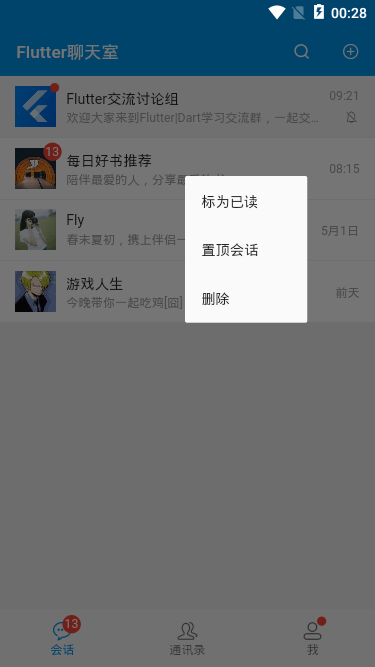
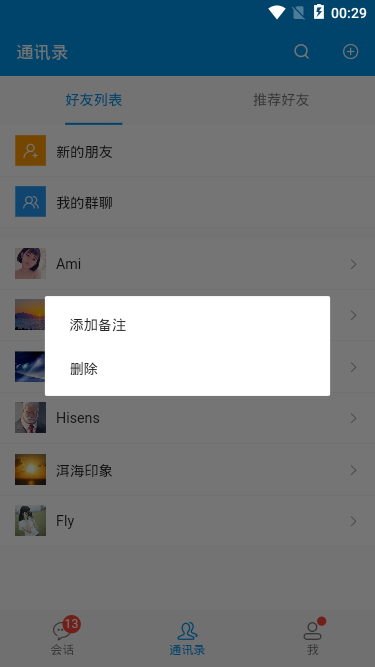
◆ flutter自定义弹窗实现
长按获取点坐标,通过Positioned组件left top属性实现定位,width控制弹窗宽度

InkWell( splashColor: Colors.grey[200], child: Container(...), onTapDown: (TapDownDetails details) { _globalPositionX = details.globalPosition.dx; _globalPositionY = details.globalPosition.dy; }, onLongPress: () { _showPopupMenu(context); },),// 长按弹窗double _globalPositionX = 0.0; //长按位置的横坐标double _globalPositionY = 0.0; //长按位置的纵坐标void _showPopupMenu(BuildContext context) { // 确定点击位置在左侧还是右侧 bool isLeft = _globalPositionX > MediaQuery.of(context).size.width/2 ? false : true; // 确定点击位置在上半屏幕还是下半屏幕 bool isTop = _globalPositionY > MediaQuery.of(context).size.height/2 ? false : true; showDialog( context: context, builder: (context) { return Stack( children: <Widget>[ Positioned( top: isTop ? _globalPositionY : _globalPositionY - 200.0, left: isLeft ? _globalPositionX : _globalPositionX - 120.0, width: 120.0, child: Material( ... ), ) ], ); } );}flutter中可否去掉弹窗宽高限制?通过SizedBox组件设置宽度,外层包裹布局无限制容器UnconstrainedBox组件
void _showCardPopup(BuildContext context) { showDialog( context: context, builder: (context) { return UnconstrainedBox( constrainedAxis: Axis.vertical, child: SizedBox( width: 260, child: AlertDialog( content: Container( ... ), elevation: 0, contentPadding: EdgeInsets.symmetric(horizontal: 10.0, vertical: 20.0), ), ), ); } );}
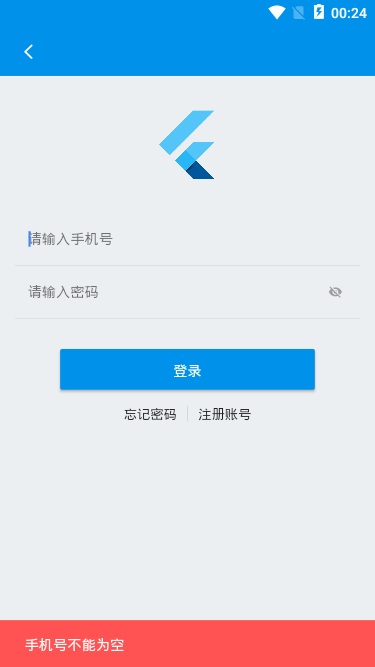
◆ flutter/dart登录、注册表单验证
TextField文本框,右侧清空文本框按钮通过Visibility组件控制
TextField( keyboardType: TextInputType.phone, controller: TextEditingController.fromValue(TextEditingValue( text: formObj['tel'], selection: new TextSelection.fromPosition(TextPosition(affinity: TextAffinity.downstream, offset: formObj['tel'].length)) )), decoration: InputDecoration( hintText: "请输入手机号", isDense: true, hintStyle: TextStyle(fontSize: 14.0), suffixIcon: Visibility( visible: formObj['tel'].isNotEmpty, child: InkWell( child: GStyle.iconfont(0xe69f, color: Colors.grey, size: 14.0), onTap: () { setState(() { formObj['tel'] = ''; }); } ), ), border: OutlineInputBorder(borderSide: BorderSide.none) ), onChanged: (val) { setState(() { formObj['tel'] = val; }); },)// SnackBar提示final _scaffoldkey = new GlobalKey<ScaffoldState>();void _snackbar(String title, {Color color}) { _scaffoldkey.currentState.showSnackBar(SnackBar( backgroundColor: color ?? Colors.redAccent, content: Text(title), duration: Duration(seconds: 1), ));}本地存储使用的是 shared_preferences
https://pub.flutter-io.cn/packages/shared_preferences
void handleSubmit() async { if(formObj['tel'] == '') { _snackbar('手机号不能为空'); }else if(!Util.checkTel(formObj['tel'])) { _snackbar('手机号格式有误'); }else if(formObj['pwd'] == '') { _snackbar('密码不能为空'); }else { // ...接口数据 // 设置存储信息 final prefs = await SharedPreferences.getInstance(); prefs.setBool('hasLogin', true); prefs.setInt('user', int.parse(formObj['tel'])); prefs.setString('token', Util.setToken()); _snackbar('恭喜你,登录成功', color: Colors.greenAccent[400]); Timer(Duration(seconds: 2), (){ Navigator.pushNamedAndRemoveUntil(context, '/tabbarpage', (route) => route == null); }); }}flutter中获取验证码60s倒计时,使用Timer.periodic实现
// 60s倒计时void handleVcode() { if(formObj['tel'] == '') { _snackbar('手机号不能为空'); }else if(!Util.checkTel(formObj['tel'])) { _snackbar('手机号格式有误'); }else { _countDown(); }}_countDown() { if(_validTimer != null) return; _validTimer = Timer.periodic(Duration(seconds: 1), (t) { setState(() { if(formObj['time'] > 0) { formObj['disabled'] = true; formObj['vcodeText'] = '获取验证码(${formObj["time"]--})'; }else { formObj['time'] = 60; formObj['vcodeText'] = '获取验证码'; formObj['disabled'] = false; _validTimer.cancel(); _validTimer = null; } }); });}
◆ flutter聊天页面解析
flutter中如何实现TextField换行文本框(类似微信聊天编辑框),设置 maxLines 属性就能实现多行文本。
不过设置maxLines,文本框有一定高度,这时只需设置maxLines: null及keyboardType并在外层加个容器限制最小高度即可。


Container( margin: GStyle.margin(10.0), decoration: BoxDecoration(color: Colors.white, borderRadius: BorderRadius.circular(3.0)), constraints: BoxConstraints(minHeight: 30.0, maxHeight: 150.0), child: TextField( maxLines: null, keyboardType: TextInputType.multiline, decoration: InputDecoration( hintStyle: TextStyle(fontSize: 14.0), isDense: true, contentPadding: EdgeInsets.all(5.0), border: OutlineInputBorder(borderSide: BorderSide.none) ), controller: _textEditingController, focusNode: _focusNode, onChanged: (val) { setState(() { editorLastCursor = _textEditingController.selection.baseOffset; }); }, onTap: () {handleEditorTaped();}, ),),另外通过文本框focusNode属性可以实现隐藏键盘
FocusNode _focusNode = FocusNode();...void clickMsgPanel() { // 隐藏键盘 _focusNode.unfocus(); setState(() { showFootToolbar = false; });}flutter中如何实现滚动聊天信息至底部?
通过ListView里controller的获取最大滚动距离,并通过jumpTo方法滚动。
ScrollController _msgController = new ScrollController();...ListView( controller: _msgController, padding: EdgeInsets.all(10.0), children: renderMsgTpl(),)
// 滚动消息至聊天底部void scrollMsgBottom() { timer = Timer(Duration(milliseconds: 100), () => _msgController.jumpTo(_msgController.position.maxScrollExtent));}ok,基于flutter+dart跨平台开发仿微信聊天实例项目就分享到这里,希望大家能喜欢!😁😁
最后附上基于electron+vue桌面端IM实例
https://www.cnblogs.com/xiaoyan2017/p/12169391.html

No comments:
Post a Comment